1panel搭建哪吒监控v1

什么是 哪吒探针?

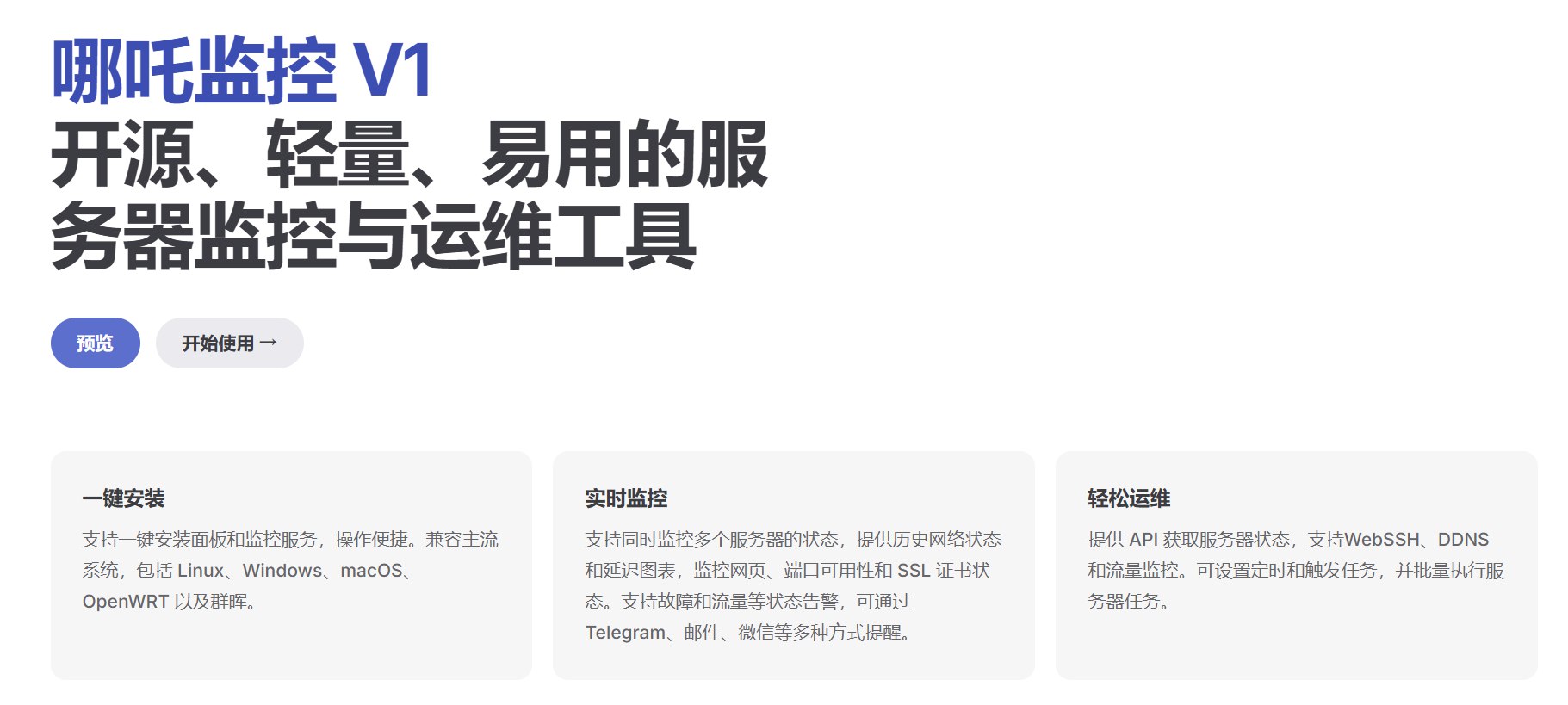
哪吒探针(Nezha Monitoring)是一个开源的服务器监控和运维工具,主要用于Linux系统的监控。它的主要特点和功能包括:

  1. 轻量级设计 - 资源占用极低
  2. 分布式架构 - 由服务端(Dashboard)和客户端(Agent)组成
  3. 实时监控 - 可监控服务器的CPU、内存、磁盘、网络等资源使用情况
  4. 多服务器管理 - 可同时监控多台服务器
  5. 美观的仪表盘 - 提供直观的Web界面展示监控数据
  6. 告警通知 - 支持异常情况的通知推送(如Telegram、企业微信等)
  7. 服务监控 - 支持对服务进程的在线状态监控
  8. 开源免费 - 基于MIT协议开源

1panel面板配置哪吒v1面板教程

1. Cloudflare设置

  • 设置域名指向你部署哪吒v1服务器的ip,并打开小云朵
  • 左侧—网络设置中启用gRPC和WebSockets
  • 左侧-SSL/TLS设置为”完全”或”完全严格”
  • 左侧-SSL/TLS-源服务器可选择申请15年证书(记得保存好生成的公钥私钥)

2. 面板机搭建

推荐配置:1c1g的稳定大厂机器

升级系统

1
apt update -y && apt install wget curl sudo unzip git -y

安装1panel面板

1
2
3
4
5
# ubuntu系统
curl -sSL https://resource.fit2cloud.com/1panel/package/quick_start.sh -o quick_start.sh && sudo bash quick_start.sh

# debian系统
curl -sSL https://resource.fit2cloud.com/1panel/package/quick_start.sh -o quick_start.sh && bash quick_start.sh

安装Docker

1
curl -fsSL https://get.docker.com | bash -s docker

3. 安装哪吒面板

安装Dashboard

国外服务器:

1
curl -L https://raw.githubusercontent.com/nezhahq/scripts/refs/heads/main/install.sh -o nezha.sh && chmod +x nezha.sh && sudo ./nezha.sh

国内服务器:

1
curl -L https://gitee.com/naibahq/scripts/raw/main/install.sh -o nezha.sh && chmod +x nezha.sh && sudo CN=true ./nezha.sh

安装过程中需要输入的信息:

  • 站点标题: 自定义
  • 暴露端口: 建议回车使用默认8008
  • Agent连接地址: 设置为 dashboard.demo.com:443(你的域名:443)
  • 是否通过TLS连接agent: 选择 y
  • 指定后台语言: 按需

安装完成后,可以通过 服务器IP:8008 访问测试

4. 1panel面板设置

  • 使用服务器ip:端口的形式登陆1panel,进入应用商店,安装OpenResty

  • 左侧网站-证书添加你创建的15年证书(或使用acme申请),然后左侧设置-安全,开启面板ssl(后续可反向代理使用域名登录1panel,请自行上网搜索)

  • 左侧网站-创建-反向代理,填入cloudflare解析好用于哪吒面板的域名,创建一个反向代理

添加上游配置

  • 反向代理创建成功,右侧点击配置进入,点击配置文件
  • 打开网站配置文件
    在已有配置文件下面添加:
    1
    2
    3
    4
    upstream dashboard {
    keepalive 512;
    server 127.0.0.1:8008;
    }

添加反向代理

  1. 点击反向代理,添加反向代理,目标为127.0.0.1:8008,保存
  2. 点击添加的反向代理-源文
  3. 将内容全选删除,替换为以下代码(如自定义了端口,请修改8008为对应端口):
1
2
3
4
5
6
7
8
9
10
11
12
13
14
15
16
17
18
19
20
21
22
23
24
25
26
27
28
29
30
31
32
33
34
35
36
37
38
39
40
41
42
43
44
45
46
47
48
49
50
51
location ^~ / {
proxy_pass http://127.0.0.1:8008;
proxy_set_header Host $host;
proxy_set_header X-Real-IP $remote_addr;
proxy_set_header X-Forwarded-For $proxy_add_x_forwarded_for;
proxy_set_header REMOTE-HOST $remote_addr;
proxy_set_header Upgrade $http_upgrade;
proxy_set_header nz-realip $http_cf_connecting_ip;
proxy_set_header Connection "upgrade";
proxy_set_header X-Forwarded-Proto $scheme;
proxy_http_version 1.1;
proxy_read_timeout 3600s;
proxy_send_timeout 3600s;
proxy_buffer_size 128k;
proxy_buffers 4 128k;
proxy_busy_buffers_size 256k;
proxy_max_temp_file_size 0;
add_header X-Cache $upstream_cache_status;
add_header Cache-Control no-cache;
proxy_ssl_server_name off;
proxy_ssl_name $proxy_host;
add_header Strict-Transport-Security "max-age=31536000";
}

underscores_in_headers on;
set_real_ip_from 0.0.0.0/0; # CDN 回源 IP 地址段
real_ip_header CF-Connecting-IP; # CDN 私有 header,此处为 CloudFlare 默认

# gRPC 服务
location ^~ /proto.NezhaService/ {
grpc_set_header Host $host;
grpc_set_header nz-realip $http_CF_Connecting_IP;
grpc_read_timeout 600s;
grpc_send_timeout 600s;
grpc_socket_keepalive on;
client_max_body_size 10m;
grpc_buffer_size 4m;
grpc_pass grpc://dashboard;
}

# WebSocket 服务
location ~* ^/api/v1/ws/(server|terminal|file)(.*)$ {
proxy_set_header Host $host;
proxy_set_header nz-realip $http_cf_connecting_ip;
proxy_set_header Origin https://$host;
proxy_set_header Upgrade $http_upgrade;
proxy_set_header Connection "upgrade";
proxy_read_timeout 3600s;
proxy_send_timeout 3600s;
proxy_pass http://127.0.0.1:8008;
}
  1. 开启https
    点击HTTPS,选择添加或申请的证书,开启https

5. 哪吒面板设置

完成上述配置后,您可以通过域名访问面板。(默认用户名和密码是admin)

面板初始设置

  1. 修改用户名登录密码(重要)
  • 左上头像-个人信息-更新个人信息
  1. 在系统设置中,真实IP请求头填写:CF-Connecting-IP(以确保后台登录IP及其它功能正常显示真实IP)

添加服务监控

  • 系统设置-服务,可添加以下测试服务进行监控:
  • 上海电信: sh.telecom.818198.xyz:80
  • 上海移动: sh.mobile.818198.xyz:80
  • 广东移动: gz.mobile.818198.xyz:80
  • 广州电信: gz.telecom.818198.xyz:80
[up主专用,视频内嵌代码贴在这]